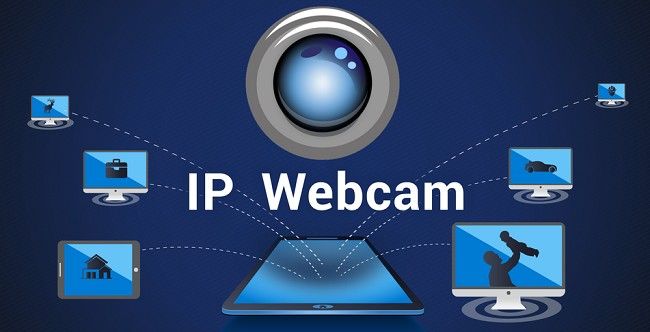
IP Webcam - Download the App on Your Respective Device
In an increasingly connected world, using your smartphone as a versatile IP camera is a practical and efficient solution. Whether you're setting up a home security system, monitoring a baby or pet, or streaming video for a project, IP Webcam is a robust and customizable app that transforms your mobile device into a network camera. This guide will take you through the steps to install, configure, and maximize the features of the IP Webcam app.
What is IP Webcam?
IP Webcam is a powerful Android application that turns your smartphone into a network camera. With various options for video and audio streaming, this app allows you to view the live camera feed on any platform using VLC media player, a web browser, or other third-party software. IP Webcam offers a diverse range of features such as motion detection, audio streaming, and the ability to upload video to cloud storage services like Dropbox, SFTP, and FTP. It can work entirely within a Wi-Fi network without the need for internet access, or you can broadcast globally through Ivideon cloud services for remote access.
With support for both video and audio, and the option to configure various video renderers, IP Webcam is suitable for a wide variety of use cases, from video surveillance to personal monitoring systems.
Features of IP Webcam
IP Webcam provides a broad array of features that can meet a variety of needs:
Video Recording: The app supports video recording in multiple formats including WebM, MOV, MKV, and MPEG4 (Android 4.1+).
Audio Streaming: It supports audio streaming in multiple formats such as WAV, Opus, and AAC (requires Android 4.1+).
Motion Detection & Sound Trigger: The app includes motion detection and sound trigger features, along with Tasker integration for further automation.
Cloud Features: Cloud push notifications for motion and sound, cloud recording for motion-triggered events, and video broadcasting through Ivideon.
Sensor Data: The app can collect sensor data and graph it online for advanced usage.
Web Renderers: IP Webcam allows you to choose from multiple web renderers including Flash, Javascript, or a built-in renderer for video streaming.
Two-Way Audio: If used with TinyCam Monitor on another Android device, IP Webcam supports two-way audio communication.
Baby and Pet Monitoring: The app includes night vision, motion, and sound detection, making it ideal for baby and pet monitoring.
Video Chat Support: It can support video streaming for Windows and Linux via an MJPEG video streaming driver.
While the lite version of the app is fully functional, it does include unobtrusive ads and lacks certain advanced features such as Tasker integration, user interface customization, and the ability to remove watermarks from recorded videos.
How to Install & Set Up IP Webcam App?
Step 1: Install the IP Webcam App
To get started, first download and install the IP Webcam app on your Android device.
Go to Google Play Store: Open the Google Play Store on your Android device.
Search for "IP Webcam": In the search bar, type in "IP Webcam" and find the app developed by "Pulp".
Download and Install: Tap on the install button to download the app to your device.
Once the installation is complete, you can proceed with setting up the app.
Step 2: Configure IP Webcam
After installing the app, follow these steps to configure it:
Open the IP Webcam App: Tap the IP Webcam icon to launch the app.
Set Video Resolution and Quality: Under the "Video Preferences" section, you can select the resolution and quality for video streaming. Choose an appropriate setting based on your needs. Higher resolutions provide better video quality but may require more bandwidth.
Set Audio Preferences: You can choose to enable audio streaming and select the audio format (WAV, Opus, or AAC). Make sure you enable the audio option if you need to capture sound in your stream.
Enable Motion Detection: In the "Motion Detection" section, toggle the option to enable motion detection. You can also configure additional settings such as sensitivity and notification options. For more advanced motion tracking, enable sound triggers.
Configure Cloud Uploading: IP Webcam allows you to upload recorded videos to cloud services like Dropbox, FTP, and SFTP. To configure this, go to the "Cloud" section and set up your desired storage location.
Enable Night Vision (Optional): If you plan to use the app in low-light conditions, you can enable the night vision feature, which uses your device's infrared capabilities.
Setup Web Renderer: Choose from available web renderers (Flash, Javascript, or built-in) to optimize your video feed for different devices and platforms.
Set Tasker Integration (Optional): If you're using Tasker, you can integrate IP Webcam with automation tasks. For example, you can set up automatic recording based on certain triggers like motion or sound detection.
Step 3: Start the Video Stream
Once you've configured the app, it's time to start streaming:
Tap "Start Server": This will begin the video stream.
Access Video Feed: The app will display an IP address and port number on the screen. Enter this IP address into any web browser or use VLC player to view the feed. You can access the stream from any device connected to the same Wi-Fi network.
View the Camera Feed: Open a web browser on your computer or another device and type in the IP address followed by the port number (e.g., http://192.168.1.101:8080). Your camera feed should load, allowing you to view the video in real-time.
Step 4: Remote Access with Ivideon (Optional)
For users who want remote access to their camera feed, IP Webcam supports Ivideon cloud broadcasting. This enables you to view the video feed from anywhere in the world, even without a local Wi-Fi connection.
Sign Up for Ivideon: Go to Ivideon’s website and create an account.
Link the IP Webcam App to Ivideon: In the IP Webcam app, go to the "Cloud" section and enter your Ivideon credentials.
Enable Broadcasting: Once linked, enable cloud broadcasting to stream your camera feed globally. You can then access it via the Ivideon app on any device, including smartphones, tablets, and computers.
Step 5: Use IP Webcam with Third-Party Software (Optional)
IP Webcam is compatible with third-party software like TinyCam Monitor for two-way audio communication, or video surveillance software for security monitoring. Here’s how to set it up:
Download and Install TinyCam Monitor: This app allows you to view the camera feed on another Android device and provides additional features like two-way audio.
Connect to IP Webcam: Open TinyCam Monitor, select “Add Camera,” and input the IP address and port number from the IP Webcam app.
Enable Two-Way Audio: If needed, you can enable two-way audio communication in TinyCam Monitor to interact with the environment captured by your mobile camera.
Troubleshooting Tips
While IP Webcam is a powerful and reliable app, there may be occasional issues during setup or use. Here are a few tips to address common problems:
No Video Feed: If the video feed doesn't load in a web browser, check that the IP address and port number are correctly entered. Make sure your device and the viewing device are on the same Wi-Fi network.
Audio Issues: If audio isn't streaming, ensure that the appropriate audio format is selected in the app settings, and check that your device’s microphone is not muted or obstructed.
Motion Detection Not Working: If motion detection isn't triggering, adjust the sensitivity settings or test with a larger area of movement. Also, ensure that the app is running in the background and not being interrupted by power-saving settings.
IP Webcam FAQs
1. What is IP Webcam?
IP Webcam is an Android app that turns your smartphone into a network camera, allowing you to stream video and audio to other devices. It supports local viewing through a web browser or VLC player, and you can also stream remotely using Ivideon cloud broadcasting.
2. How do I install IP Webcam?
Simply go to the Google Play Store, search for "IP Webcam," and tap "Install." After installation, open the app to start setting up your camera.
3. Is IP Webcam free?
Yes, IP Webcam has a free version with ads. However, some advanced features (like Tasker integration and customizable user interface) are only available in the paid version.
4. Can I access the camera feed remotely?
Yes, you can access the video feed remotely using Ivideon cloud broadcasting, which allows you to view the feed from anywhere with an internet connection.
5. How can I view the camera feed on my computer?
Once you start the server in the IP Webcam app, open a web browser and enter the IP address and port number provided by the app (e.g., http://192.168.1.101:8080). You can also use VLC player to view the feed.
6. What formats can I record video in?
You can record video in WebM, MOV, MKV, or MPEG4 formats (Android 4.1+). Audio can be recorded in WAV, Opus, or AAC formats.
7. How do I enable motion detection?
In the app settings, navigate to the "Motion Detection" section and toggle it on. You can adjust the sensitivity and enable sound triggers for more precise detection.
8. Does IP Webcam support two-way audio?
Yes, IP Webcam supports two-way audio if used with the TinyCam Monitor app on another Android device.
9. Can I upload videos to cloud storage?
Yes, IP Webcam supports uploading videos to Dropbox, FTP, and SFTP servers using the Filoader plugin.
10. How do I enable night vision?
You can enable night vision in the app’s settings under "Camera Preferences." This feature uses infrared lighting to improve visibility in low-light environments.
11. Can IP Webcam work without the internet?
Yes, IP Webcam can stream video within your local Wi-Fi network without requiring an internet connection. However, remote access requires an internet connection via Ivideon.
12. What devices are compatible with IP Webcam?
IP Webcam works with Android smartphones and tablets. You can view the camera feed on any device with a web browser, VLC player, or third-party software like TinyCam Monitor.
13. How can I remove ads or watermarks?
To remove ads and the watermark on recorded videos, you need to upgrade to the paid version of IP Webcam.
14. Does IP Webcam support video surveillance?
Yes, IP Webcam can be used for video surveillance, and it integrates with third-party MJPG software for security monitoring.
15. Is Tasker integration available in the free version?
No, Tasker integration is only available in the paid version of the app.
16. How do I troubleshoot if the video feed isn't working?
Make sure your IP address and port number are correct, and ensure both the phone and viewing device are connected to the same Wi-Fi network. Also, check the app's settings to confirm that the camera is enabled.
17. How do I turn off the camera stream?
To stop the camera stream, simply tap "Stop Server" in the IP Webcam app.
18. Can I use IP Webcam for baby monitoring?
Yes, IP Webcam includes features ideal for baby monitoring, such as motion detection, sound detection, and night vision.
Conclusion
IP Webcam is a versatile app that allows you to turn your Android smartphone into a powerful network camera. Whether you're using it for home surveillance, baby monitoring, or pet watching, it provides a wide range of features and customization options. With simple installation steps, the app can be quickly set up to stream video locally or remotely using Ivideon. For users seeking advanced features, the app also supports third-party software integration and cloud recording. By following the steps outlined in this guide, you can make the most of IP Webcam and enhance your video surveillance or monitoring system with ease.
Trending Now
Updates